Aligning pivots of floor pieces and child elements
The BuildingGen plugin relies on the pivot points of parts to position each one accurately within the unit space. Therefore, it is crucial to ensure that the pivot point is correctly placed for each part type.
|
|
|
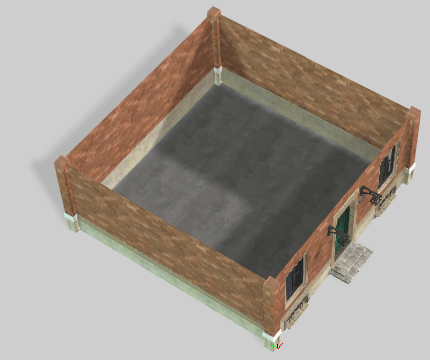
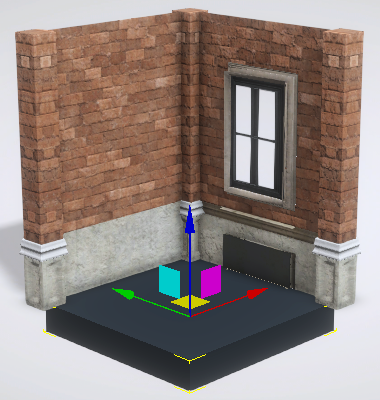
An example of a building generated with compatible pivot points. |
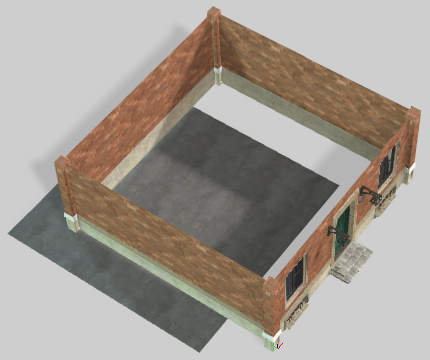
An example of misaligned pivot points. Notice how the floor space is offset by one whole unit. |
|
|
|
|
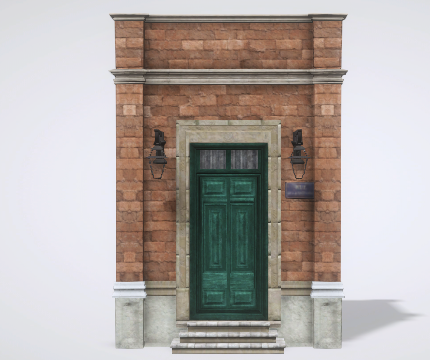
Child elements with correct pivot point positions. |
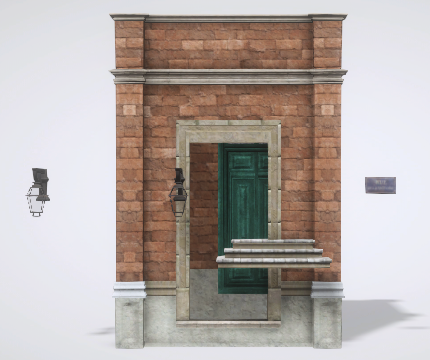
The same child elements with misaligned pivot point positions. |
- After applying textures to your imported building components, select a floor piece or child element to begin editing its pivot point position.
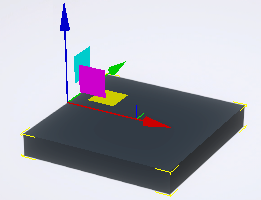
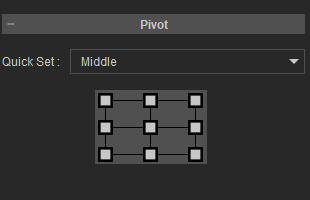
- Access the Pivot settings by navigating to the Modify > Attribute > Pivot section. You will need to adjust the pivot point according to the part or element type.
For floor pieces, the pivot point should be centered on the top side to align them with a conceptualized floor plane. This will also prevent the floor thickness from clipping into other building components. Change Quick Set to “Middle” and select the Upper Center point of the pivot box diagram.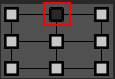
For child elements, change Quick Set to “Middle” and select the Lower Center point of the pivot box diagram.
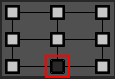
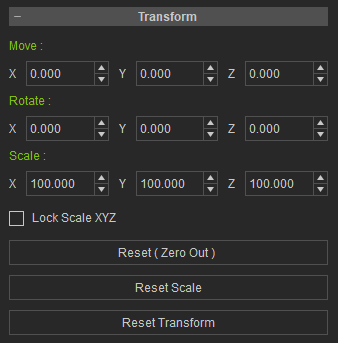
- Go to Modify > Attribute > Transform and click the Reset Transform button to save the selected part or element scale settings as the new default scale.
- Click Reset (Zero Out) to set the position and rotation of the selected part or element to zero on all three axes and realign the current transformations to world origin.
 Note:
Note:The default scale setting is 100 cm for all three axes.
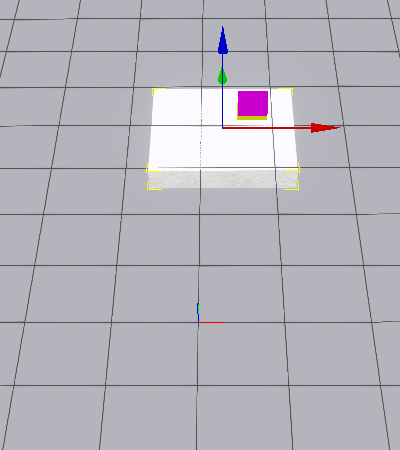
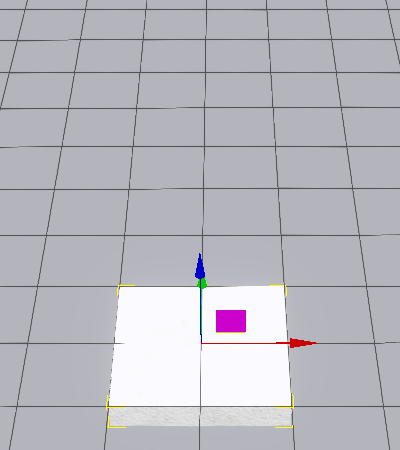
Before using Reset (Zero Out), the floor piece has arbitrary transformations.
After using Reset (Zero Out), the floor piece moves to world origin.
- Choose the aligned part in the viewport and save it in the Custom tab. For more information, see Smart Content Manager Online Manual - Saving Content.
